TranscriptFix
I built a tool to edit AWS Transcribe transcripts with speaker diarization. It downloads YouTube videos, transcribes them with speaker labels, and provides a beautiful editor to correct mistakes—all with preserved word-level timestamps.
Source: github.com/brianhliou/transcript-fix
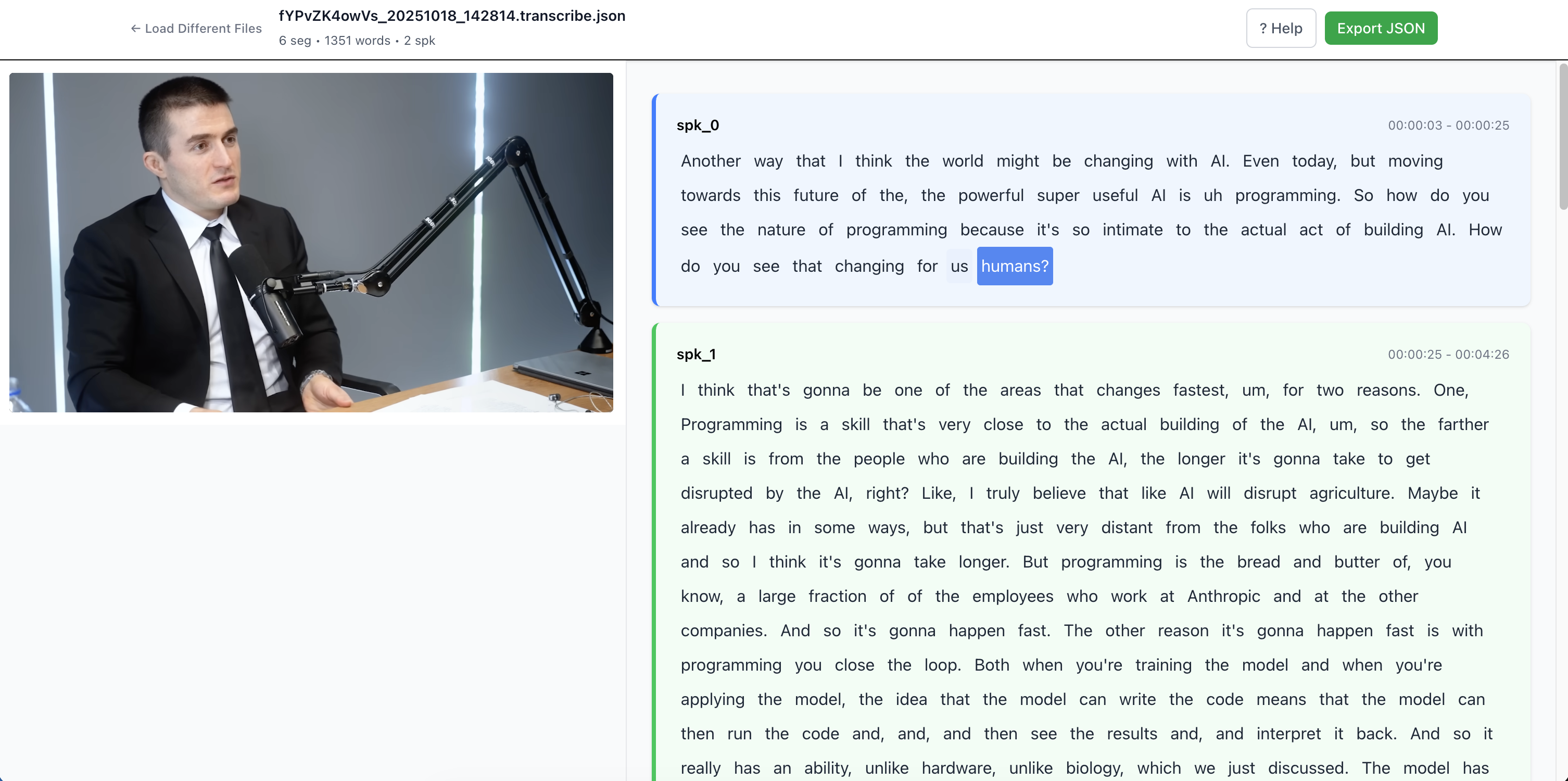 Video on the left, editable transcript on the right with real-time sync
What Is This?
TranscriptFix is a two-part system:
- Python transcription script - Downloads YouTube media, sends to AWS Transcribe with speaker diarization, outputs structured JSON
- React editor - Side-by-side video player and transcript with word-level editing, speaker renaming, and keyboard shortcuts
The Problem: AWS Transcribe Isn’t Perfect
AWS Transcribe is impressive—it automatically identifies speakers and timestamps every word. But it’s not flawless:
- Misheard words - “I’m a developer” becomes “I’m a debater”
- Wrong speaker labels -
spk_0andspk_1tell you nothing about who’s talking - No easy way to fix it - The raw JSON output isn’t designed for human editing
I wanted a workflow where I could quickly transcribe any YouTube video, then polish the transcript in a purpose-built editor that preserves all the timing data.
Key Features
1. YouTube → AWS Transcribe Pipeline
The transcribe.py script handles the entire workflow:
python transcribe.py "https://www.youtube.com/watch?v=VIDEO_ID" \
  --bucket my-s3-bucket \
  --video \
  --max-speakers 2
What it does:
- Downloads audio (and optionally video) via
yt-dlp - Uploads audio to S3
- Starts AWS Transcribe job with speaker diarization
- Polls until completion
- Parses the transcript into clean JSON with word-level timestamps
Output:
[
  {
    "speaker": "spk_0",
    "start": 0.12,
    "end": 2.34,
    "text": "Hello, how are you?",
    "words": [
      {"start": 0.12, "end": 0.45, "text": "Hello,"},
      {"start": 0.50, "end": 0.75, "text": "how"},
      {"start": 0.80, "end": 1.00, "text": "are"},
      {"start": 1.05, "end": 2.34, "text": "you?"}
    ]
  }
]
The word array preserves individual word timestamps, so edits don’t break the sync.
2. Side-by-Side Editor
The React editor puts video on the left (40% width) and transcript on the right (60% width). As the video plays, the current word highlights in blue. Press Space to pause, and the cursor automatically jumps to that word.
Edit mode is tied to pause state—when paused, words become editable with orange hover styling. Click a word, type your correction, and it updates instantly.
3. Keyboard-Driven Workflow
| Action | Shortcut |
|---|---|
| Play/Pause | Space |
| Edit word | Click word (when paused) |
| Add word after | Space (while editing) |
| Add word before | Shift + Space (while editing) |
| Delete word | Clear text + Backspace |
| Cancel edit | Escape |
| Seek without editing | Cmd/Ctrl + Click (even when paused) |
The workflow feels natural: play, pause at a mistake, click the word, fix it, press Space to continue.
4. Speaker Renaming
AWS Transcribe labels speakers as spk_0, spk_1, etc. Click any speaker label to rename them:
spk_0 → Alice
spk_1 → Bob
All segments with that speaker update instantly. No more guessing who said what.
5. Auto-Focus on Pause
When you pause mid-playback, the editor automatically focuses the word that was playing without changing scroll position. This was tricky to implement—I had to:
- Detect the pause transition (
isPausedchanged from false → true) - Find the word element where
currentTimefalls within its start/end range - Call
.focus({ preventScroll: true })to avoid jarring scroll jumps
The result: you pause, the cursor is already on the right word, and you can start editing immediately.
Technical Deep Dive
Architecture
The Python script is cleanly separated into two modules:
- transcribe.py - CLI orchestration (download → S3 → AWS → parse → save)
- transcript_parser.py - Shared parsing logic (AWS JSON → segments with speaker labels)
Why separate? Reusability. The parser can be imported by other scripts that need to process existing AWS Transcribe output without re-transcribing.
React Editor Structure
editor/
├── src/
│   ├── components/
│   │   ├── FileUpload.jsx       # Drag-drop interface
│   │   ├── Header.jsx            # Stats and export button
│   │   ├── MediaPlayer.jsx       # Video/audio player (sticky)
│   │   ├── TranscriptViewer.jsx  # Main transcript container
│   │   ├── Segment.jsx           # Speaker segment
│   │   ├── EditableWord.jsx      # Individual word editing
│   │   └── HelpTooltip.jsx       # Keyboard shortcuts modal
│   └── App.jsx                   # State management and layout
The editor uses contentEditable for inline word editing. Each word is a <span> that becomes editable when paused. This preserves the natural flow of text while allowing granular control.
Preventing Layout Shift
Early on, switching between play and edit modes caused the text to shift vertically—words had different padding/borders in each mode. The fix:
// Apply the SAME styles in both modes
className={`
  word inline-block px-1 rounded border-b border-dashed border-transparent
  ${isEditMode ? 'hover:border-orange-300' : 'hover:bg-blue-100'}
`}
Now words occupy identical space regardless of mode. Toggling edit mode doesn’t budge a single pixel.
Auto-Merge Empty Segments
When you delete all words in a segment, it becomes invisible—but what if it’s sandwiched between two segments with the same speaker?
spk_0: "Hello"
spk_0: (empty - deleted)
spk_0: "How are you?"
The editor automatically detects this and merges the adjacent segments:
spk_0: "Hello How are you?"
This keeps the transcript clean and prevents orphaned segments.
What I Learned
1. AWS Transcribe’s Speaker Diarization Is Powerful
AWS embeds the speaker label directly in each word’s metadata. This makes parsing straightforward—no need to match separate speaker timelines.
The JSON structure:
{
  "type": "pronunciation",
  "alternatives": [{"content": "Hello"}],
  "start_time": "0.12",
  "end_time": "0.45",
  "speaker_label": "spk_0"
}
I just iterate through items, group by speaker changes, and build segments.
2. contentEditable Is Surprisingly Good
I initially worried about contentEditable’s quirks (cursor positioning, undo, copy-paste), but for single-word editing it’s perfect. Users can:
- Double-click to select the whole word
- Use arrow keys to move within the word
- Press Escape to cancel
The only gotcha: you must use suppressContentEditableWarning in React to avoid console noise.
3. Modifier Key Detection Is Essential
Initially, clicking a word always entered edit mode when paused. But what if you want to navigate the transcript without editing?
Solution: Check for modifier keys:
const handleClick = (e) => {
  if (e.metaKey || e.ctrlKey) {
    // Cmd/Ctrl+Click → seek without editing
    onSeek(word.start);
  } else if (isEditMode) {
    // Regular click when paused → edit
    spanRef.current?.focus();
  } else {
    // Click during playback → seek and pause
    onSeek(word.start);
  }
};
This gives users full control: click to edit, Cmd+Click to navigate.
4. Video Download Is Optional for Cost Savings
AWS Transcribe only needs audio, but the editor benefits from video (seeing the speaker helps identify who’s talking). I made video download optional:
# Audio only (faster, cheaper)
python transcribe.py URL --bucket BUCKET

# Audio + video (for editor)
python transcribe.py URL --bucket BUCKET --video
The script always transcribes from audio, but downloads video separately if requested. This keeps S3 uploads minimal.
Tech Stack
Python:
- yt-dlp - YouTube downloads
- boto3 - AWS SDK
- argparse - CLI interface
React:
- React 18 - UI framework
- Vite - Build tool
- Tailwind CSS v4 - Styling
- contentEditable - Inline editing
Challenges & Solutions
Challenge 1: Auto-Scroll vs. Auto-Focus
I wanted the transcript to auto-scroll during playback, but NOT when pausing. If it scrolled on pause, the user would lose their place.
Solution: Two separate useEffects:
// Auto-scroll during playback
useEffect(() => {
  if (isEditMode) return; // Don't scroll when paused
  const activeWord = document.querySelector('.word.active');
  if (activeWord) {
    activeWord.scrollIntoView({ behavior: 'smooth', block: 'center' });
  }
}, [currentTime, isEditMode]);

// Auto-focus on pause (without scrolling)
useEffect(() => {
  const justPaused = prevIsEditModeRef.current === false && isEditMode === true;
  if (justPaused) {
    const word = findWordAtCurrentTime(currentTime);
    word?.focus({ preventScroll: true });
  }
  prevIsEditModeRef.current = isEditMode;
}, [isEditMode, currentTime]);
Challenge 2: Space Key Overload
Space has two meanings:
- Global: Play/pause video
- While editing: Add new word after current word
The fix: check if the user is actively editing:
const isTyping = e.target.tagName === 'INPUT' ||
                 e.target.tagName === 'TEXTAREA' ||
                 e.target.isContentEditable;

if (e.key === ' ' && !isTyping) {
  e.preventDefault();
  togglePlayPause();
}
If focus is on a contentEditable word, Space adds a word. Otherwise, it controls playback.
Challenge 3: Tailwind CSS v4 Migration
The editor initially used Tailwind v3, but I wanted the latest v4 features. Migration broke the build because v4 requires:
// postcss.config.js
export default {
  plugins: {
    '@tailwindcss/postcss': {},
  },
};
And a new import in CSS:
@import "tailwindcss";
After updating the configs, everything worked perfectly.
Future Enhancements
Ideas I’m considering:
- Timestamp editing - Adjust word start/end times manually
- Segment splitting - Split long segments at sentence boundaries
- Export formats - SRT, VTT, plain text
- Undo/redo - Track edit history
- Search - Find words or speakers
- Multi-language support - Use AWS language detection
- Waveform visualization - See audio levels alongside transcript
What This Teaches
✅ You Learn
- How to integrate AWS Transcribe with speaker diarization
- Structuring a CLI tool with modular functions
- Building a media-synced editor in React
- Using contentEditable for inline editing
- Keyboard shortcut design for efficient workflows
❌ What’s Simplified
This is a personal productivity tool, not enterprise-ready:
- No authentication - Anyone with the editor can load files
- No collaboration - Single-user editing only
- No version control - Edits aren’t tracked (yet)
- No cloud storage - Files are local-only
Think of it as a power tool for individual creators, not a SaaS platform.
Conclusion
TranscriptFix scratches a specific itch: I wanted to transcribe podcast interviews and talks, then polish the transcripts without losing word-level timing data. AWS Transcribe gets me 90% of the way there—this tool handles the last 10%.
The combination of a streamlined CLI workflow and a keyboard-driven editor makes transcription feel fast and natural. Download, transcribe, edit, export. No fuss.
If you work with video transcripts, give it a try:
- Clone the repo - github.com/brianhliou/transcript-fix
- Run the script - Transcribe a YouTube video in minutes
- Edit in the browser - Fix mistakes with real-time media sync
- Export JSON - Use the corrected transcript anywhere
AWS Transcribe does the heavy lifting, but you still need to fix the errors. This tool makes that process fast.